
While widgets cannot be edited, they can be selectively hidden and reordered to enhance clarity and focus.
Administrators can personalize the dashboard view for the entire company.
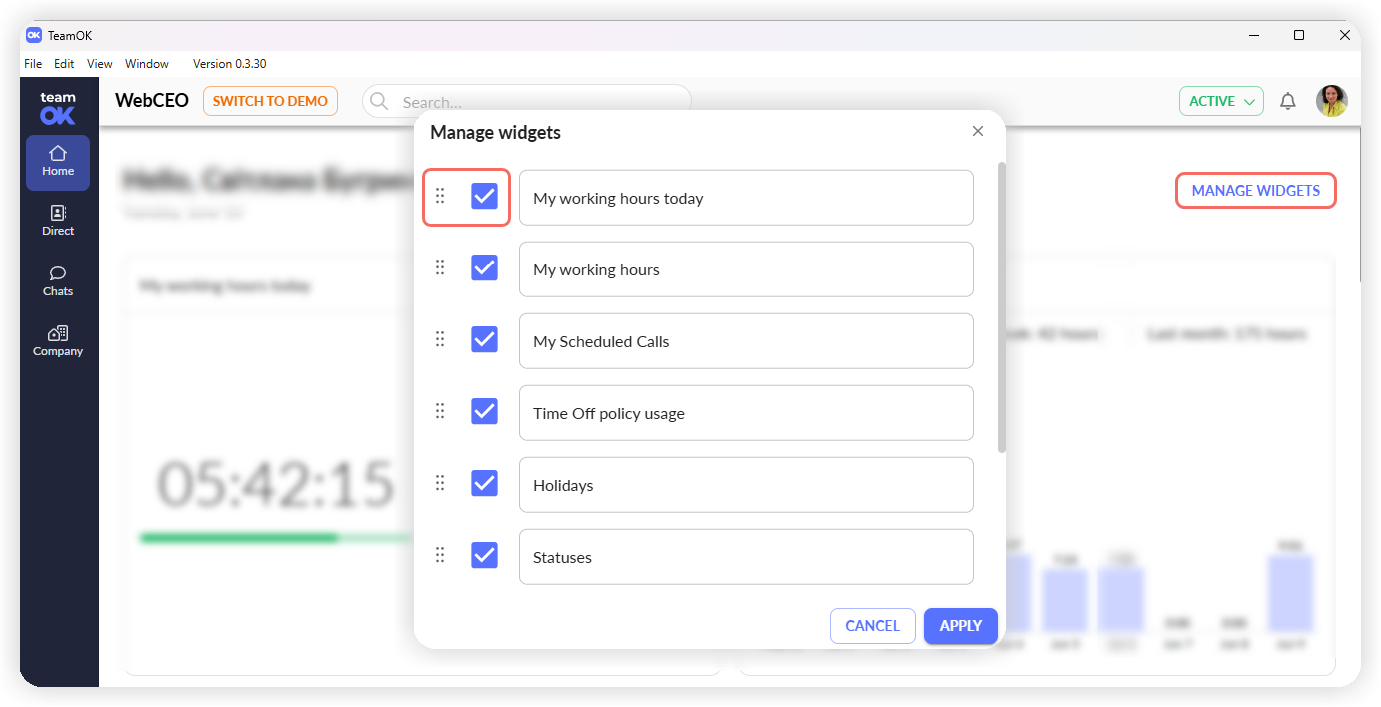
From the Home menu, click the Manage Widgets button located in the upper-right corner of the dashboard.
In the Manage Widgets pop-up window, use the checkboxes to enable or disable specific widgets according to your preferences.
To adjust the order, drag the Handle icon (⋮⋮) next to each widget name to reposition it within the list.
After making changes, click Apply to save the updated layout.
This customization ensures a cleaner, more relevant dashboard experience across the organization.